Case Study 3
WFM Software User Research and first steps
… about introducing an UX-Design approach into Software Development processes
In House
2024

Assist Digital
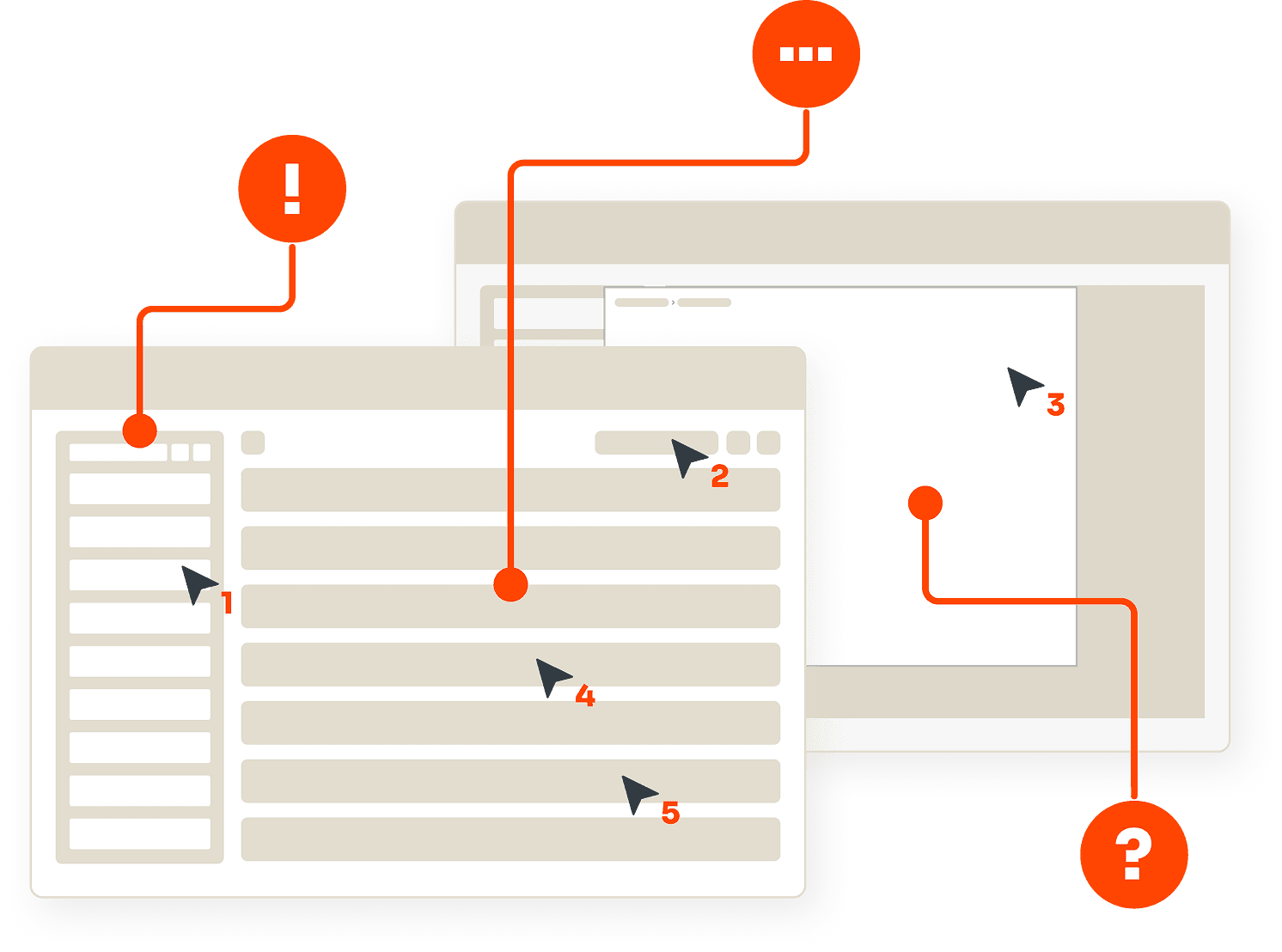
Overview
Product
Workforce-Management Software suited for Call Center Purposes
My Role
UX Strategy
UX Research
UX Design
UI Design
Team
Part 1 "User Research"
Team of 3
- with continuation by myself
Part 2 "FIrst steps"
me as solo designer
Tools
Figma
FigJam

Miro

ChatGPT

Google
Docs
Methods
Part 1 "User Research"
UX Walk Through
User Interviews
User Personas
Sheme of Workforcemanagement
List of Problems
Design Mantras
Part 2 "First Steps"
Workshop with Customer
Collaboration with Development
Wireframing
Prototyping
Wire Flow
Mock ups
Prototype
Objective
This project was created for a former employer:
The product was originally built as a simple tool to record call-center employees’ working hours. Over the years, it grew into a monolithic workforce-management system aiming to cover the entire operational process. As the customer base expanded, new features were added one by one—often as quick fixes to urgent problems rather than as part of a long-term product vision.
The result: a platform held together seemingly by magic, struggling with severe performance issues, offering every imaginable feature yet leaving most users uncertain about how to use them and where to find them.
Video in progress.
This case study is live — the walkthrough is coming soon.
This case study is live — the walkthrough is coming soon.
Read about my detailed design process below.
Ready for a deeper look?
This case study includes long-form content, complex layouts, and detailed visuals that are best experienced on tablets or desktops.
On mobile, you’ll find the overview and a short walkthrough video — perfect for getting the big picture.
bigger device
bigger device
on a
and read this
and read this
to your eyes
to your eyes
Be nice
Be nice
Part 1: User Research
When I joined the company, a subsidiary of a bigger concern, my first task as a Junior UX Designer was to familiarize myself with product of a workforce-management tool. I leveraged my initial unbiased perspective to conduct a structured UX Walk-Through during onboarding. Using the Nielsen Severity Scale and NN Group’s Usability Heuristics, I captured early frictions before they could blend into familiarity.
Internal User Research: Collaboration with UX Headquarter in Italy
At the time, the corporate UX department in Italy had initiated a design campaign for the product. I had the precious possibility to collaborate with them as a design liaison between the subsidiary and headquarters. I participated in selected interviews and later joined the cross-team evaluation sessions in Italy.
The insights from this initial research were foundational:
1
Core Usability Issues ("Design Pillars")
The system was built without considering real user behaviour. This resulted in e.g. inconsistent task flows, unclear information architecture, weak interface communication, and severe performance problems.
2
Initial Personas
Three roles were identified — Agent, Team Lead, Management — revealing a major workload cascade caused by Agents’ inability to correct timestamp errors themselves.
3
High-Level Service Blueprint
Key everyday tasks such as clocking, absences, and shift changes were mapped for the first time, exposing friction points and opportunities for structural improvements.
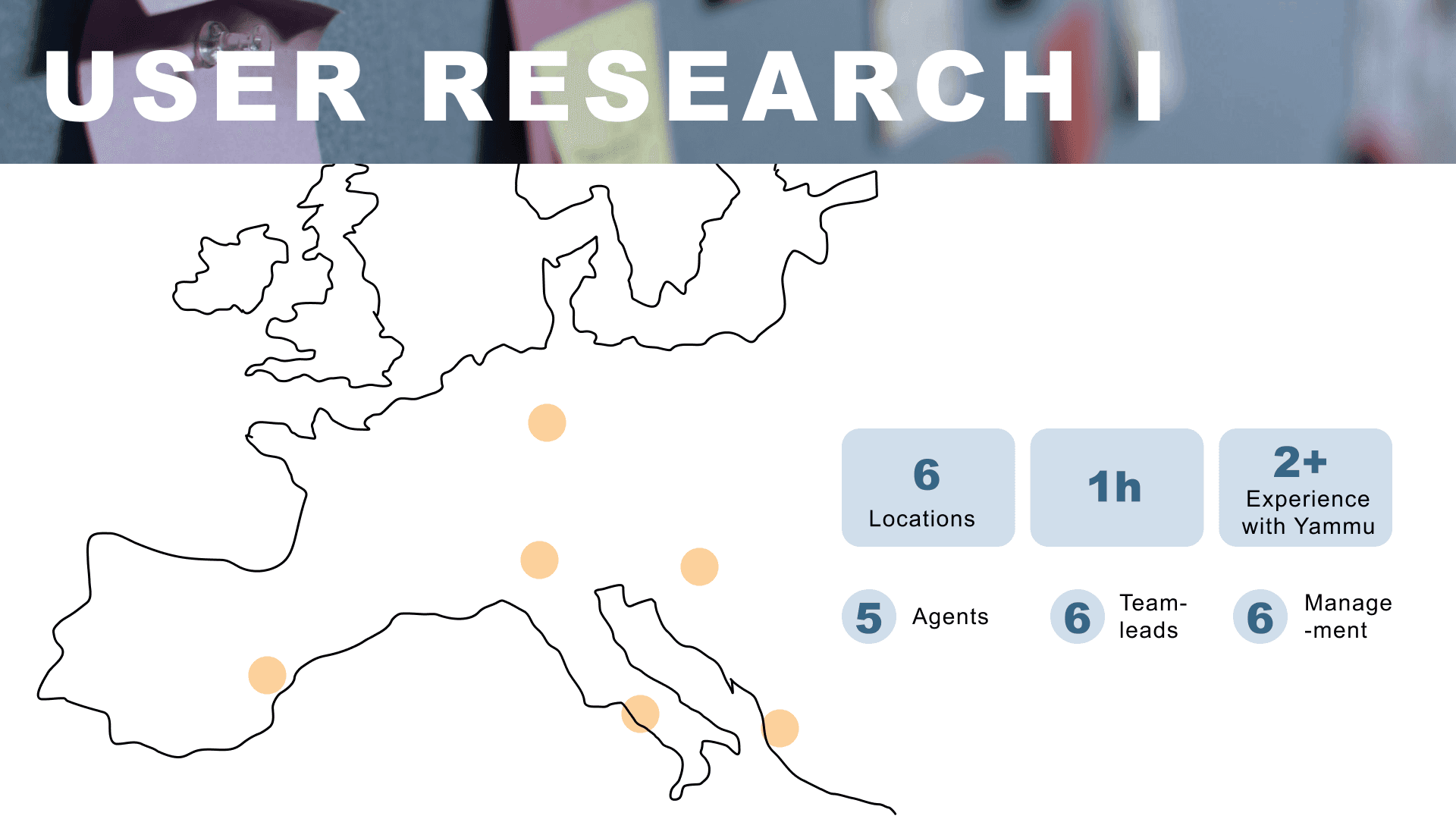
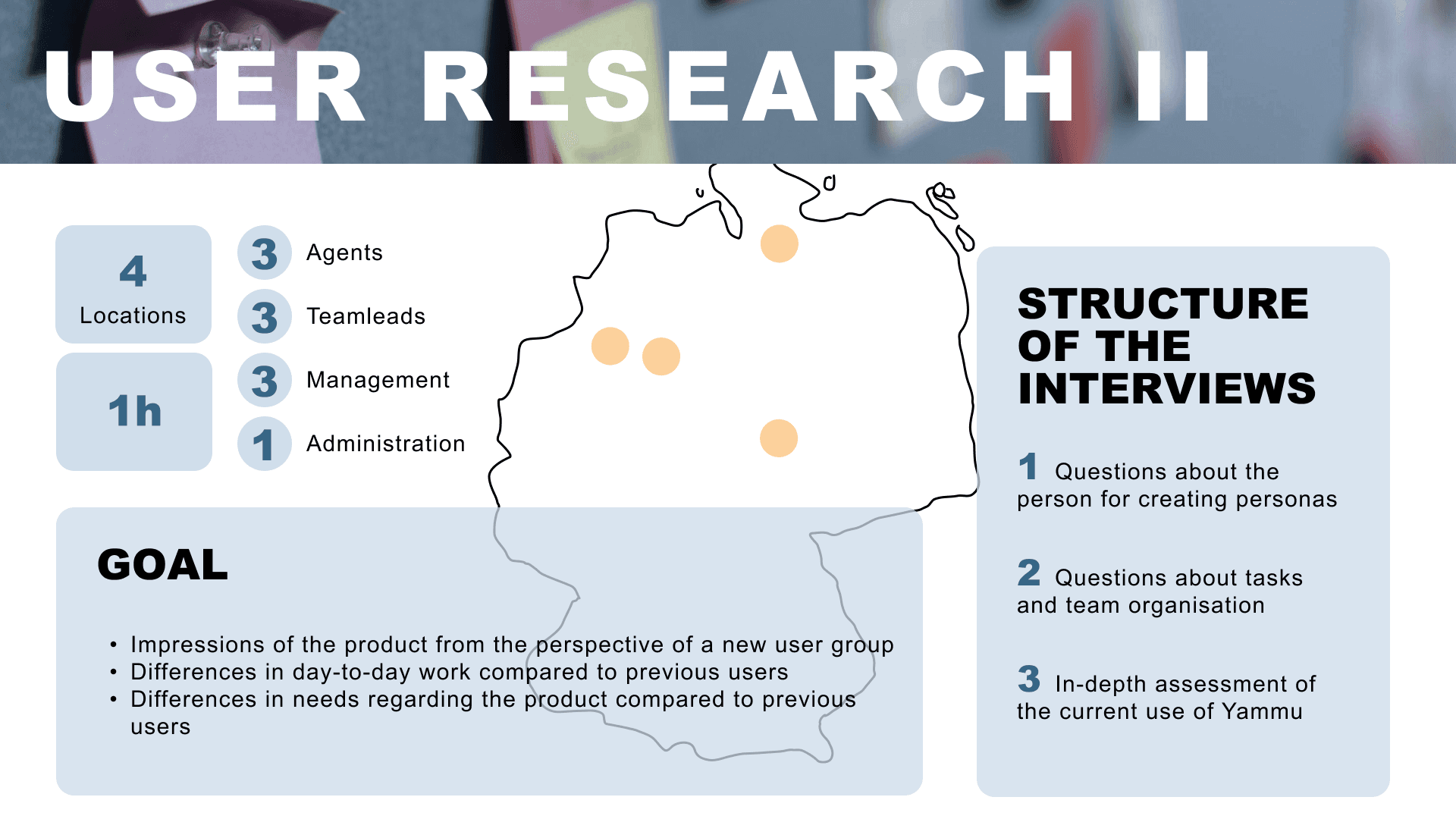
External User Research: Independent Study With a New Client
Parallel to the internal research phase, a major new German-speaking client joined the customer base. Unlike the hierarchical planning model observed within the corporation, this client used a completely different operational philosophy: autonomous workforce planning, granting employees far more control over their schedules.
Since this context fundamentally differed from everything learned so far, I conducted a second round of interviews independently, using the original questionnaire for comparability and extending it with new focus areas:
Key Considerations
How does the autonomous workflow differ from the hierarchical one?
Which roles exist in this organizational model
How do inexperienced users perceive the system?
Research Outputs
Extended Persona Set




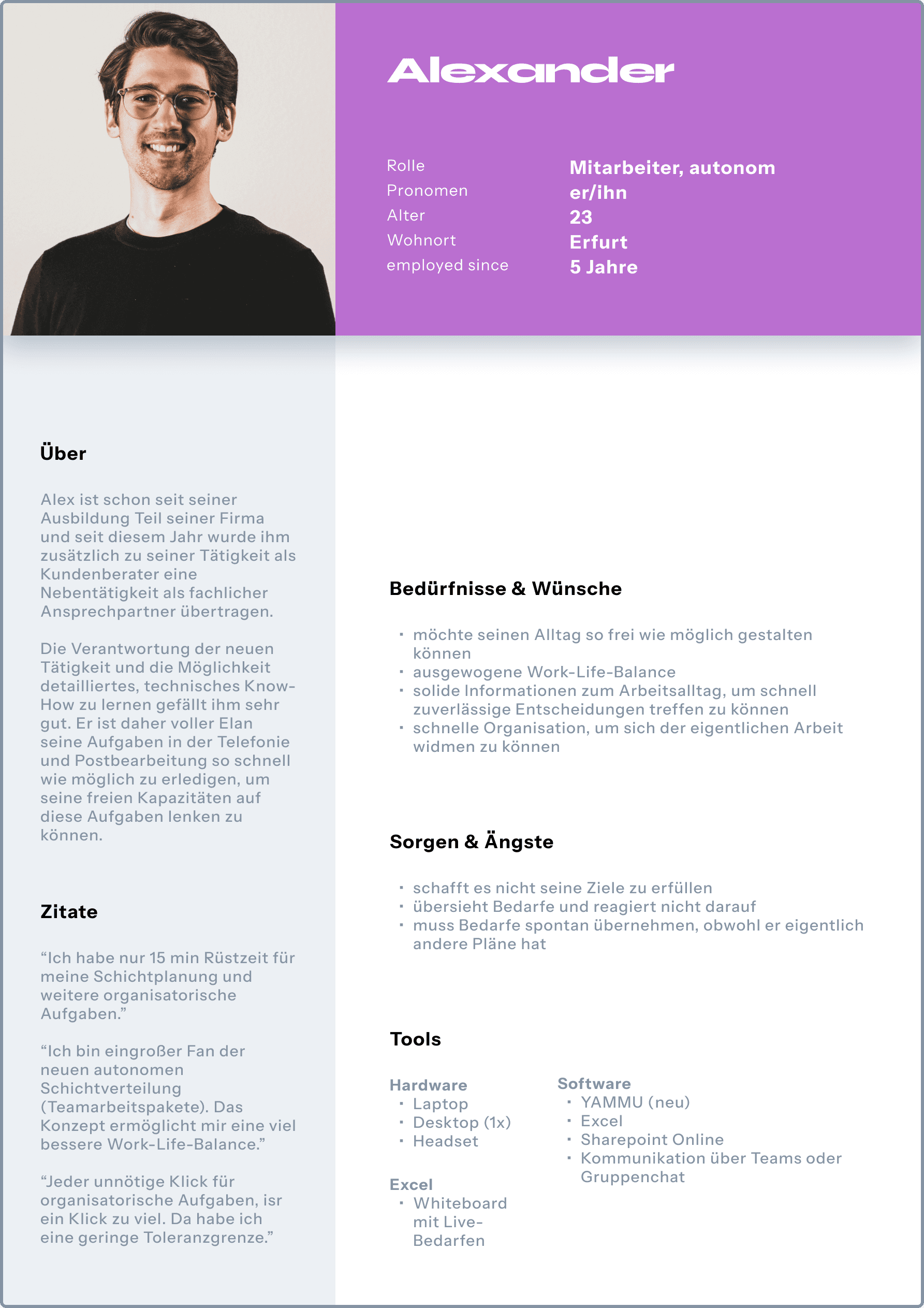
The previous personas could not represent the autonomous planning environment. I therefore created a second persona set contrasting the two planning models:
Hierarchical (internal/legacy)
Autonomous (new client)
This dual-persona approach ensured that future design decisions would be stress-tested against both organizational realities.
Mapping the Autonomous Planning Process
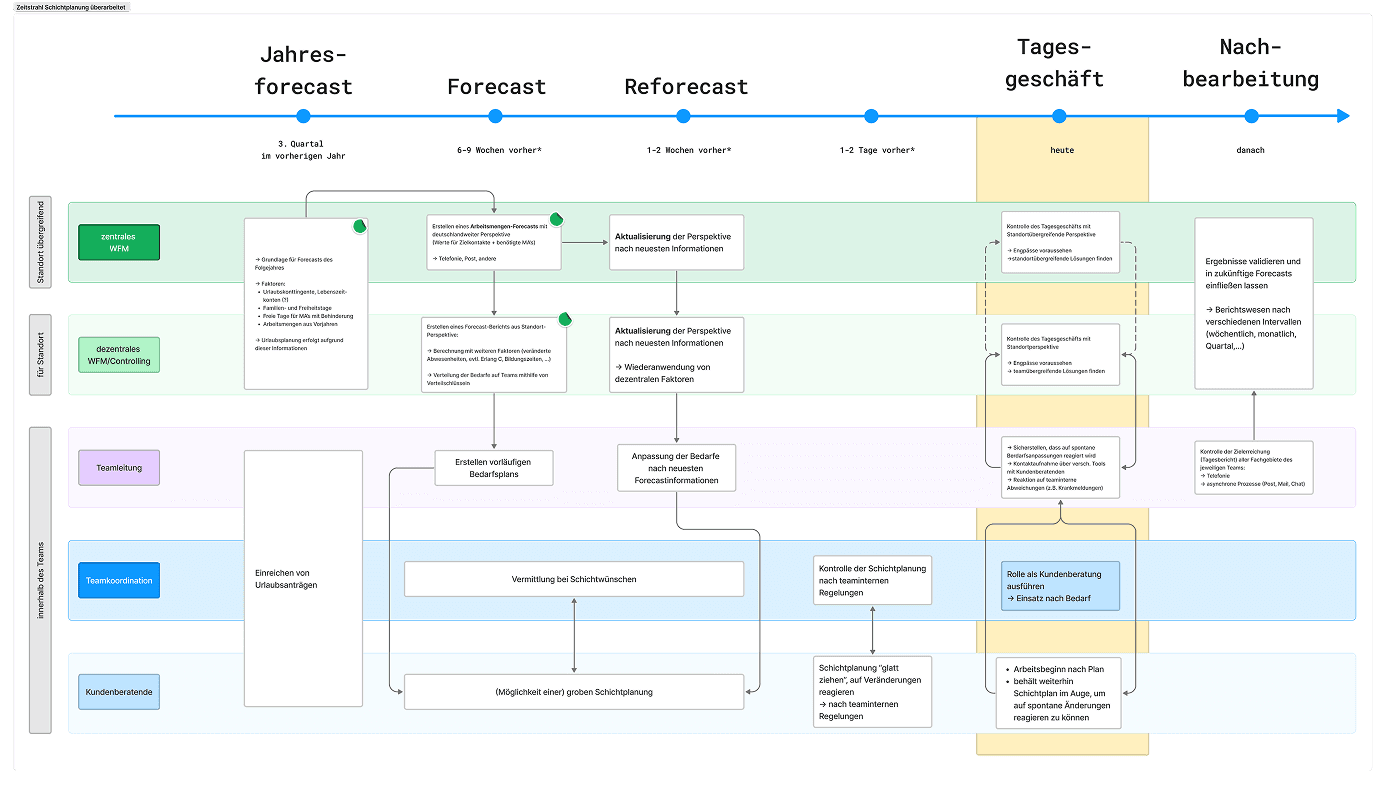
Because autonomous planning is not only new to YAMMU but also pioneering within the industry, capturing it precisely was essential. I documented the interdisciplinary planning flow in detail, highlighting where system adjustments would be required — especially to enable employees to act with more autonomy and fewer dependencies on supervisors.
“Design Mantras” for the Redesign
Visibilty of System Status
“Keep users informed about what is going on, through appropriate feedback within a reasonable amount of time.”
(Usability Heuristics)
Hick's Law
“The time it takes to make a decision increases with the number and complexity of choices.”
(Laws of UX)
Postel's Law
“Be liberal in what you accept, and conservative in what you send.”
(Laws of UX)
Given the system’s extensive usability challenges (“essentially, everything needs reconsideration”), I distilled three guiding principles from established UX laws from which the usability of the product would benefit the most from. These “Design Mantras” served as alignment anchors for all upcoming ideation work.
Part 2: First Steps
Why “Fixe Fixes”? — Immediate Relief While Preparing for Bigger Changes
The research phase revealed severe usability issues rooted deep within the system’s architecture. A proper redesign would require structural changes that users would only notice much later in the process.
At the same time, the new client’s workforce had not yet adapted to the system’s quirks and urgently needed improvements. To respond to this tension, I introduced what I called “Fixe Fixes”: small, low-effort enhancements designed to offer immediate relief while creating room for more fundamental redesign work.
Fixe Fixes
Low-effort usability improvements that require minimal development or architectural changes, yet significantly enhance user guidance and overall system experience.
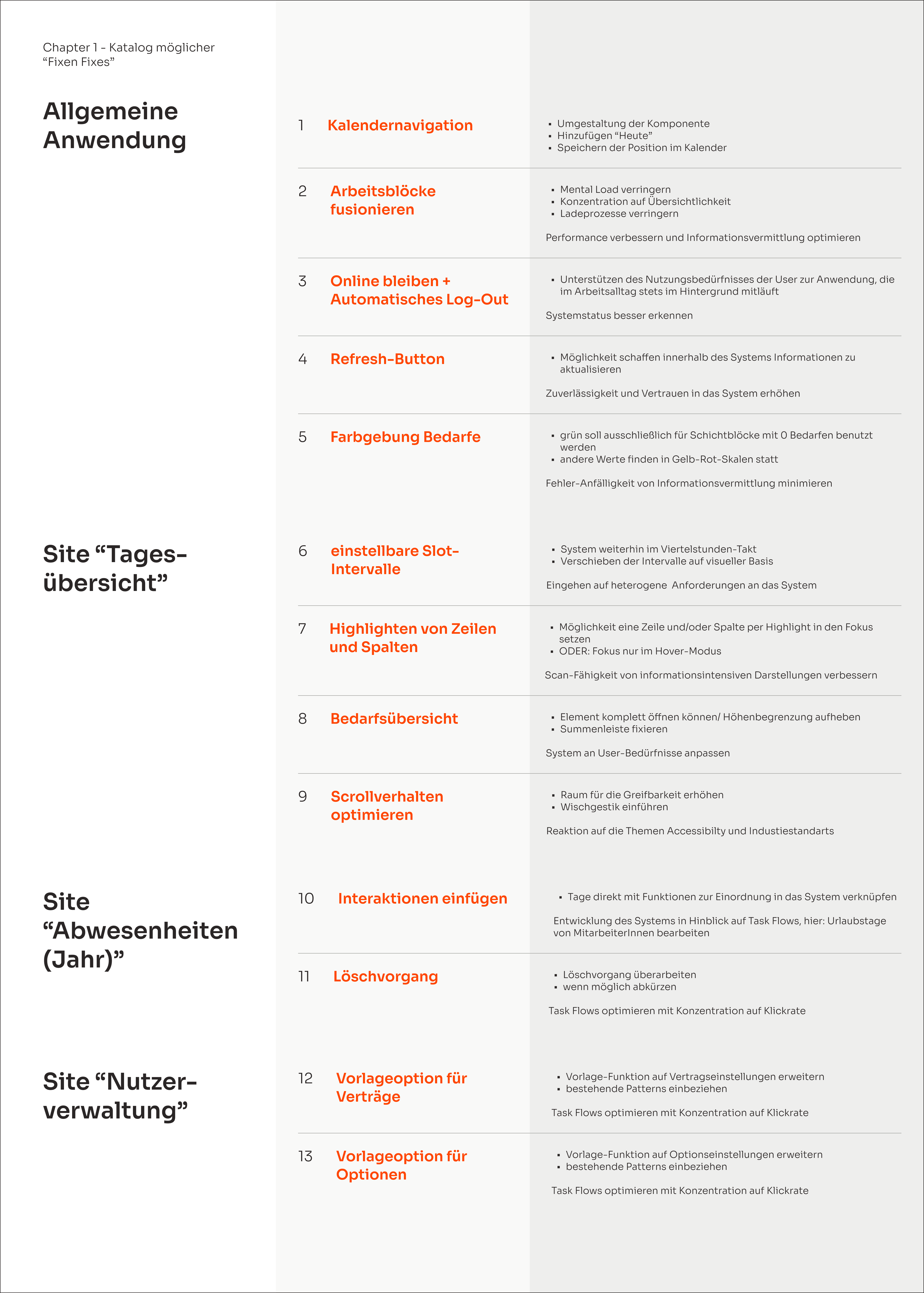
Defining the ‘Fixe Fixes’ — From Insight to Prioritised Catalogue
20
Research-Based Shortlist
Based on the insights gathered during the user research, I created an initial catalogue of 20 improvement proposals aimed at reducing friction, clarifying system behaviour, and addressing the most critical usability pain points.
13
Feasibility Check with Development
Together with the development team, I evaluated each proposal in terms of technical effort and system invasiveness.
This step reduced the list to 13 feasible fixes that could be implemented without major architectural changes.
8
Stakeholder Workshop: Refining the Priorities
To involve the new client in the decision-making process, I conducted a workshop with the Product Owner and four client-side stakeholders. The goal was to identify which fixes would deliver the highest value for their teams.
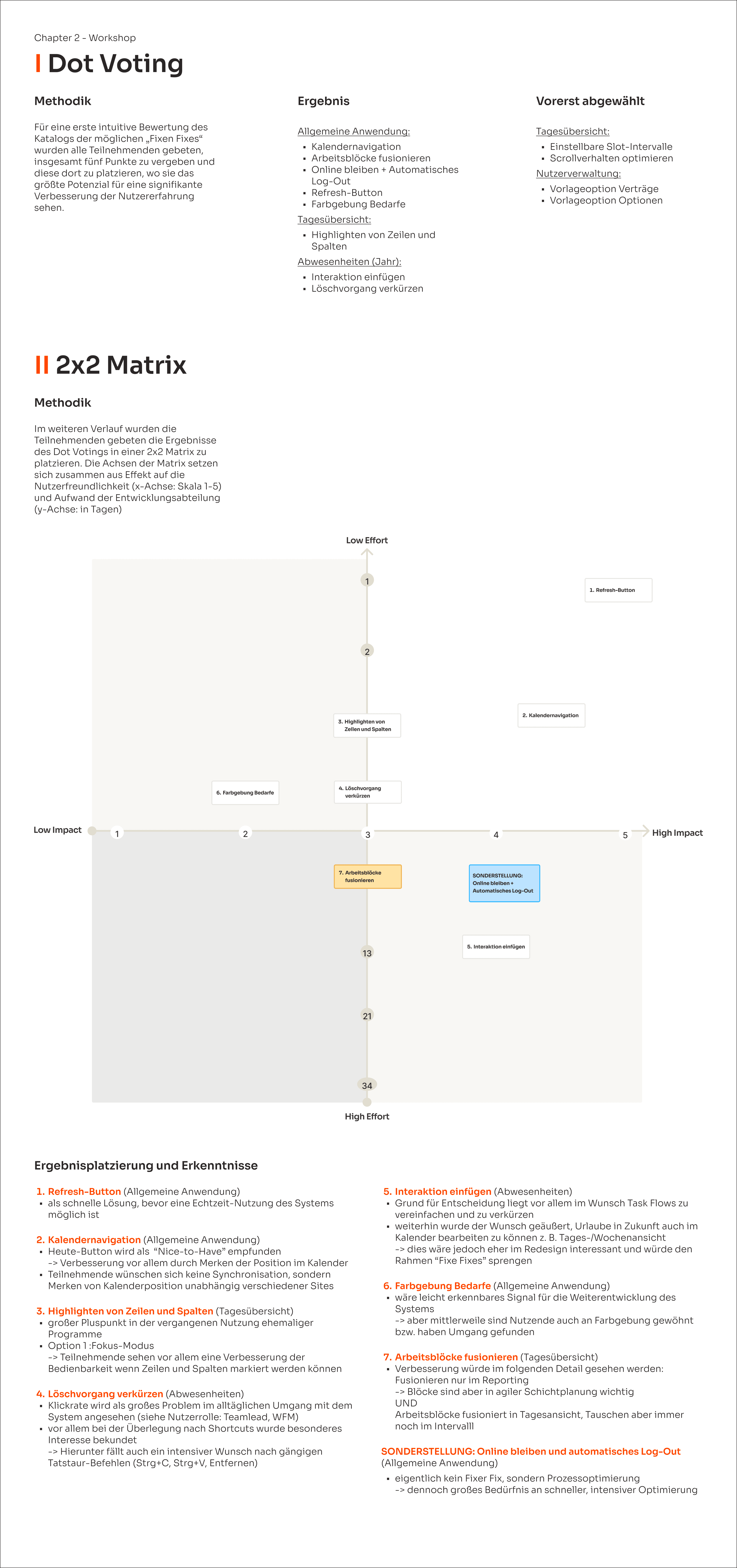
Implementation — Low-Effort, High-Impact UX Improvements
Given the limited development budget, there was little room for user testing or iterative validation. Therefore my research output of the Design Mantras came in this situation quite handy. I grounded the ideation on the Design Mantras, while focusing on reducing friction and improving clarity wherever possible.
My strategy was to create tangible moments of relief for users—signals that the product was evolving in a user-centred direction—without triggering complex downstream system changes.
Example 1 - Refresh Button
Problem:
The system did not refresh views automatically. Users had to navigate back and forth through the interface to update information manually.
User Story:
As an employee using autonomous scheduling, I want to refresh my current view so I can efficiently complete system-related tasks.
Solution:
A global Refresh Button was introduced to allow users to update their current view instantly without navigating away.
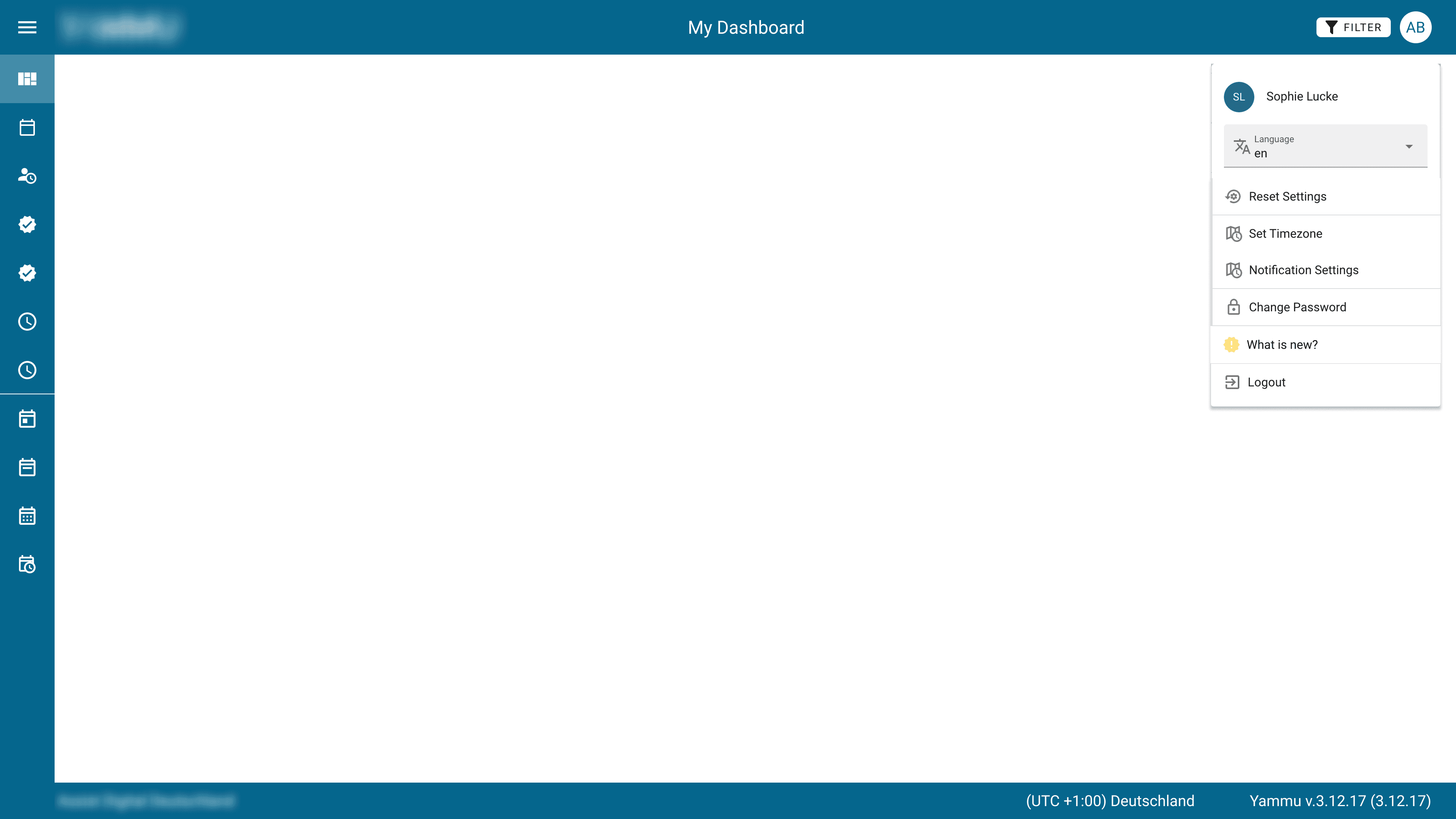
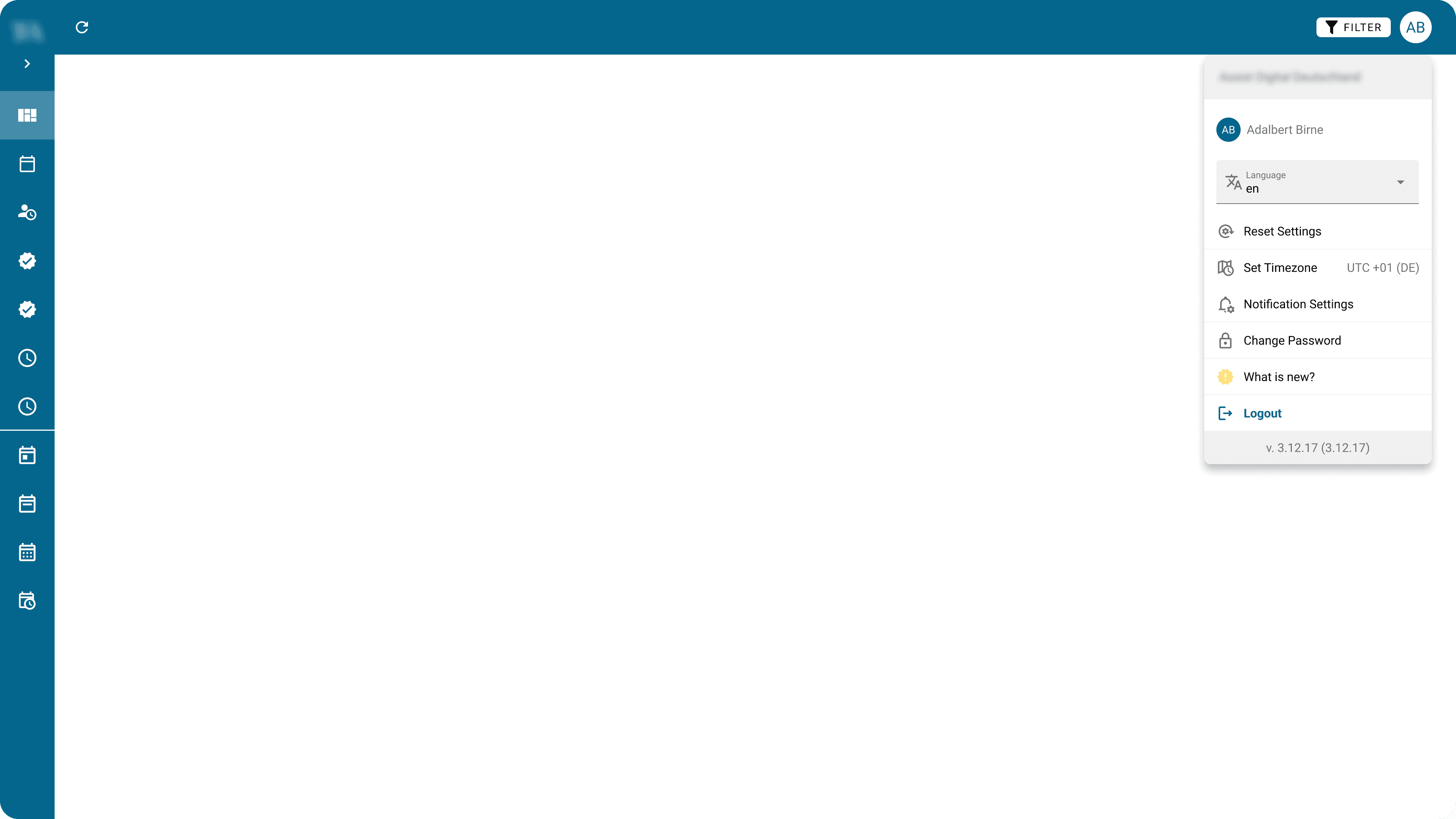
Before
After
1 Streamlining the Global Navigation
1
2
3
Before
1
Repositioning of Logo
The logo moved to the top of the side nav—icon when collapsed, full logo when expanded.
2
Clarifying the Nav Toggle
Replaced the hamburger with an arrow icon to clearly indicate expanding the side navigation.
3
Removing Redundant Titles
Removed the page title from the header because the information was duplicated from Sidenavigation.
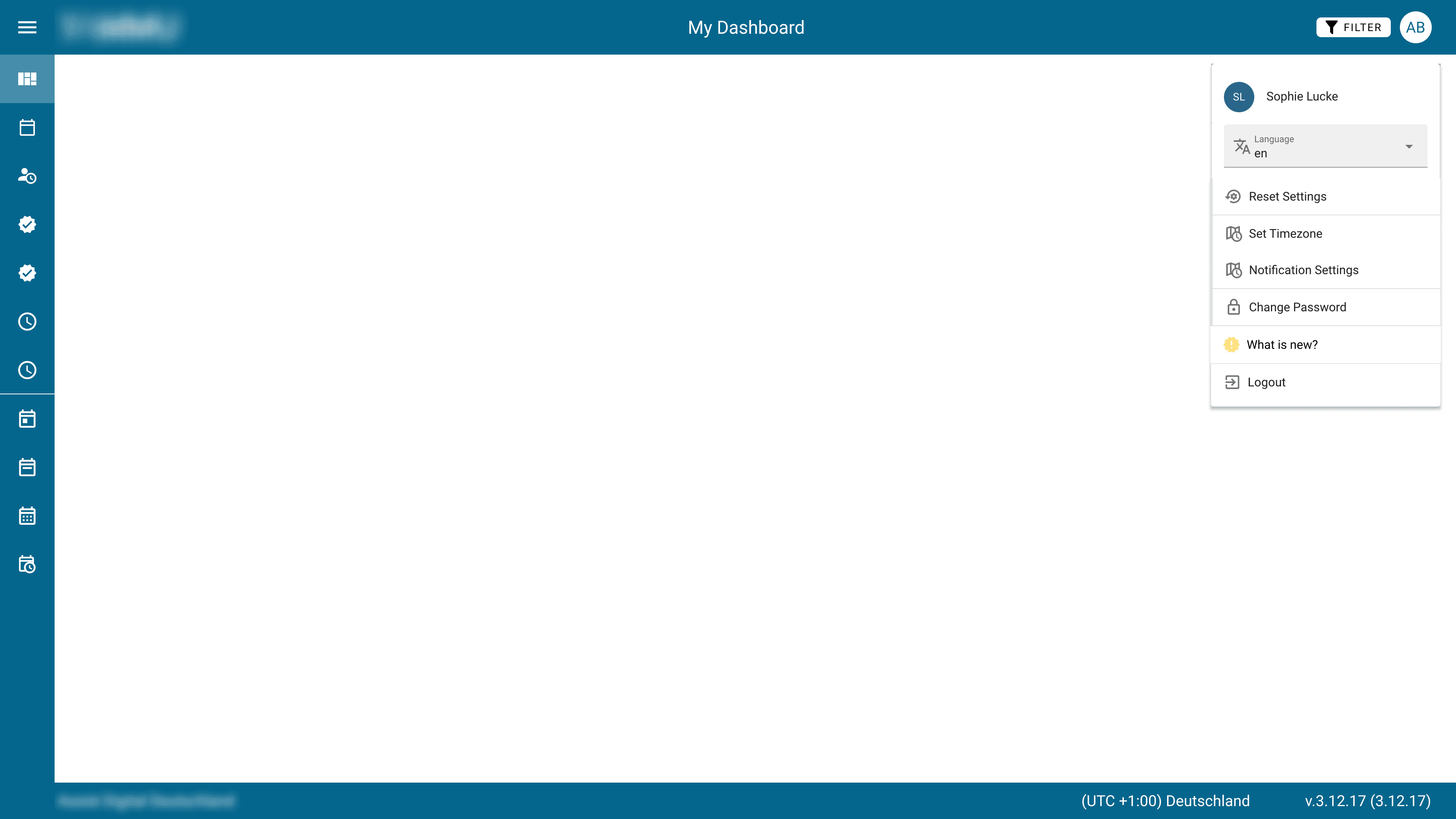
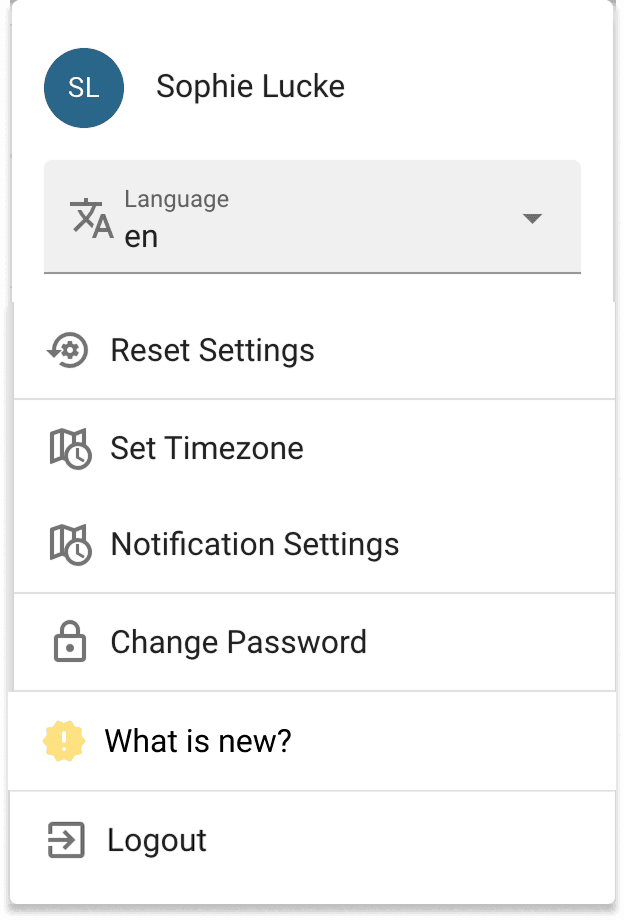
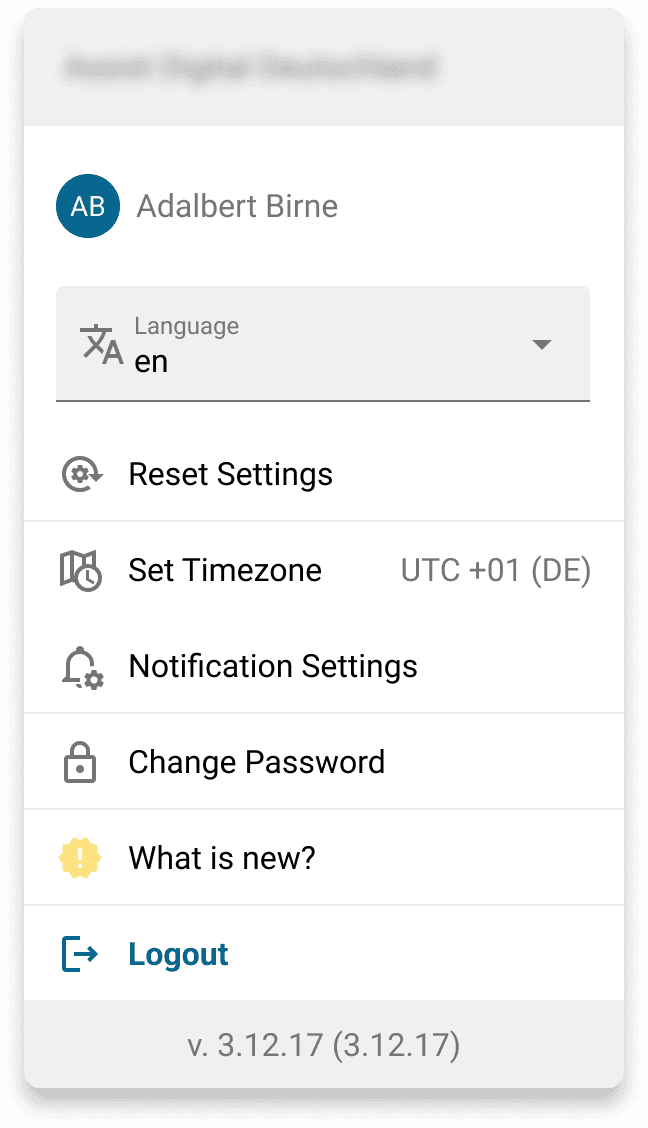
2 Reducing Clutter
1
1
Before
After
1
1
2
3
The footer is removed to reduce visual clutter. Its information moves into the Account Settings module, which is easily accessible and redesigned with clearer visual hierarchy.
2
3
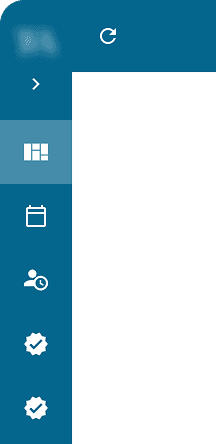
3 Placing the Refresh-Button
1


2
1
Positioning
The refresh button is placed in the upper-left area according to Jakob’s Law.
2
Improved Feedback for Slow Performance
Because the product often struggles with performance issues, the reload interaction includes two loading states and an option to cancel the action.
4 Onboarding for Product Changes
A lightweight onboarding concept was introduced to clearly communicate the new changes. It serves as a temporary solution until future iterations allow for more advanced methods like progressive onboarding.
Before
After
1 Streamlining the Global Navigation
1
2
3
Before
1
Repositioning of Logo
The logo moved to the top of the side nav—icon when collapsed, full logo when expanded.
2
Clarifying the Nav Toggle
Replaced the hamburger with an arrow icon to clearly indicate expanding the side navigation.
3
Removing Redundant Titles
Removed the page title from the header because the information was duplicated from Sidenavigation.
2 Reducing Clutter
1
1
Before
After
1
1
2
3
The footer is removed to reduce visual clutter. Its information moves into the Account Settings module, which is easily accessible and redesigned with clearer visual hierarchy.
2
3
3 Placing the Refresh-Button
1
2
1
Positioning
The refresh button is placed in the upper-left area according to Jakob’s Law.
2
Improved Feedback for Slow Performance
Because the product often struggles with performance issues, the reload interaction includes two loading states and an option to cancel the action.
4 Onboarding for Product Changes
A lightweight onboarding concept was introduced to clearly communicate the new changes. It serves as a temporary solution until future iterations allow for more advanced methods like progressive onboarding.
Before
After
1 Streamlining the Global Navigation
1
2
3
Before
1
Repositioning of Logo
The logo moved to the top of the side nav—icon when collapsed, full logo when expanded.
2
Clarifying the Nav Toggle
Replaced the hamburger with an arrow icon to clearly indicate expanding the side navigation.
3
Removing Redundant Titles
Removed the page title from the header because the information was duplicated from Sidenavigation.
2 Reducing Clutter
1
1
Before
After
1
1
2
3
The footer is removed to reduce visual clutter. Its information moves into the Account Settings module, which is easily accessible and redesigned with clearer visual hierarchy.
2
3
3 Placing the Refresh-Button
1
2
1
Positioning
The refresh button is placed in the upper-left area according to Jakob’s Law.
2
Improved Feedback for Slow Performance
Because the product often struggles with performance issues, the reload interaction includes two loading states and an option to cancel the action.
4 Onboarding for Product Changes
A lightweight onboarding concept was introduced to clearly communicate the new changes. It serves as a temporary solution until future iterations allow for more advanced methods like progressive onboarding.
Before
After
1 Streamlining the Global Navigation
1
2
3
Before
1
Repositioning of Logo
The logo moved to the top of the side nav—icon when collapsed, full logo when expanded.
2
Clarifying the Nav Toggle
Replaced the hamburger with an arrow icon to clearly indicate expanding the side navigation.
3
Removing Redundant Titles
Removed the page title from the header because the information was duplicated from Sidenavigation.
2 Reducing Clutter
1
1
Before
After
1
1
2
3
The footer is removed to reduce visual clutter. Its information moves into the Account Settings module, which is easily accessible and redesigned with clearer visual hierarchy.
2
3
3 Placing the Refresh-Button
1
2
1
Positioning
The refresh button is placed in the upper-left area according to Jakob’s Law.
2
Improved Feedback for Slow Performance
Because the product often struggles with performance issues, the reload interaction includes two loading states and an option to cancel the action.
4 Onboarding for Product Changes
A lightweight onboarding concept was introduced to clearly communicate the new changes. It serves as a temporary solution until future iterations allow for more advanced methods like progressive onboarding.
Example 2 - Color Coding of Demand Levels
Problem:
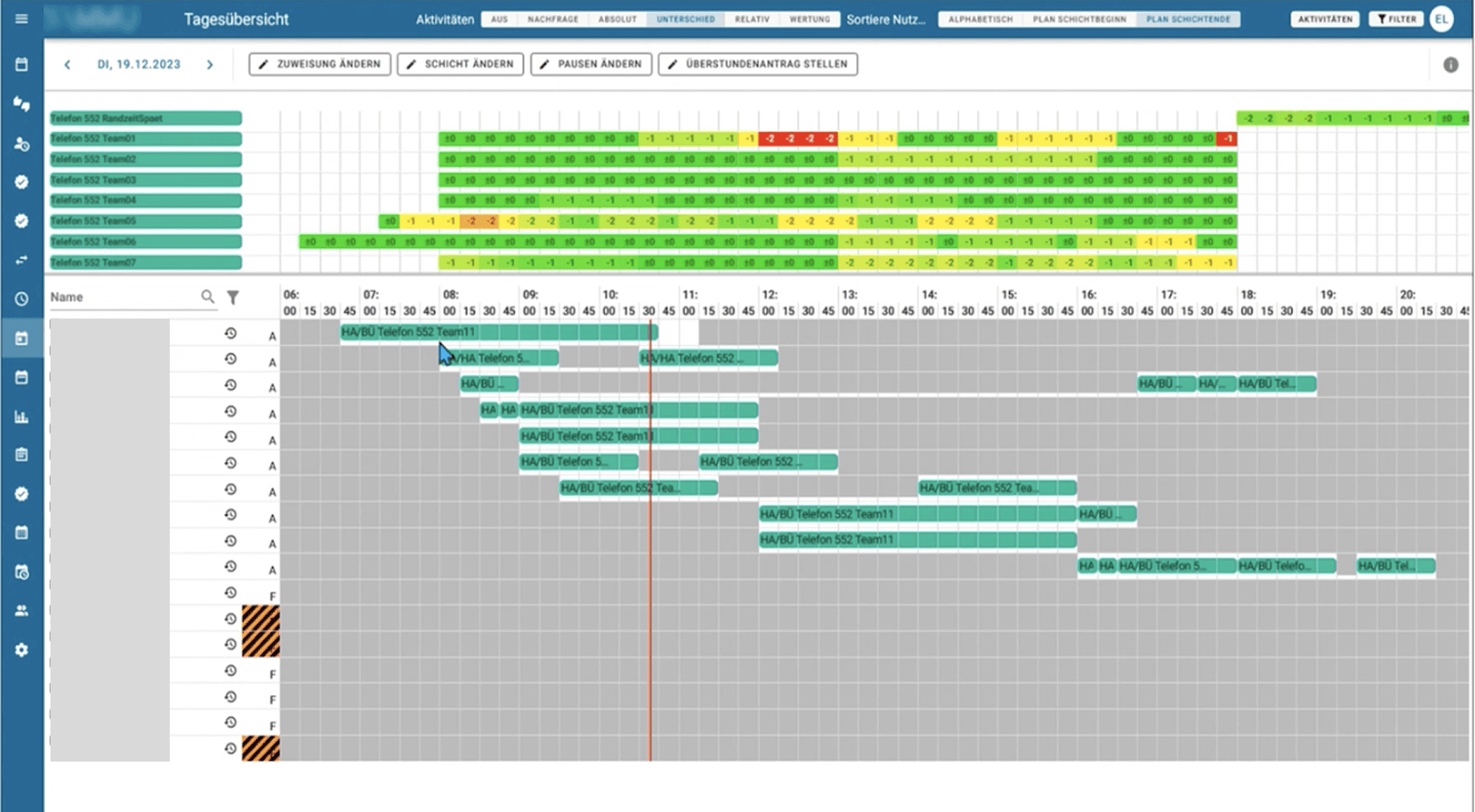
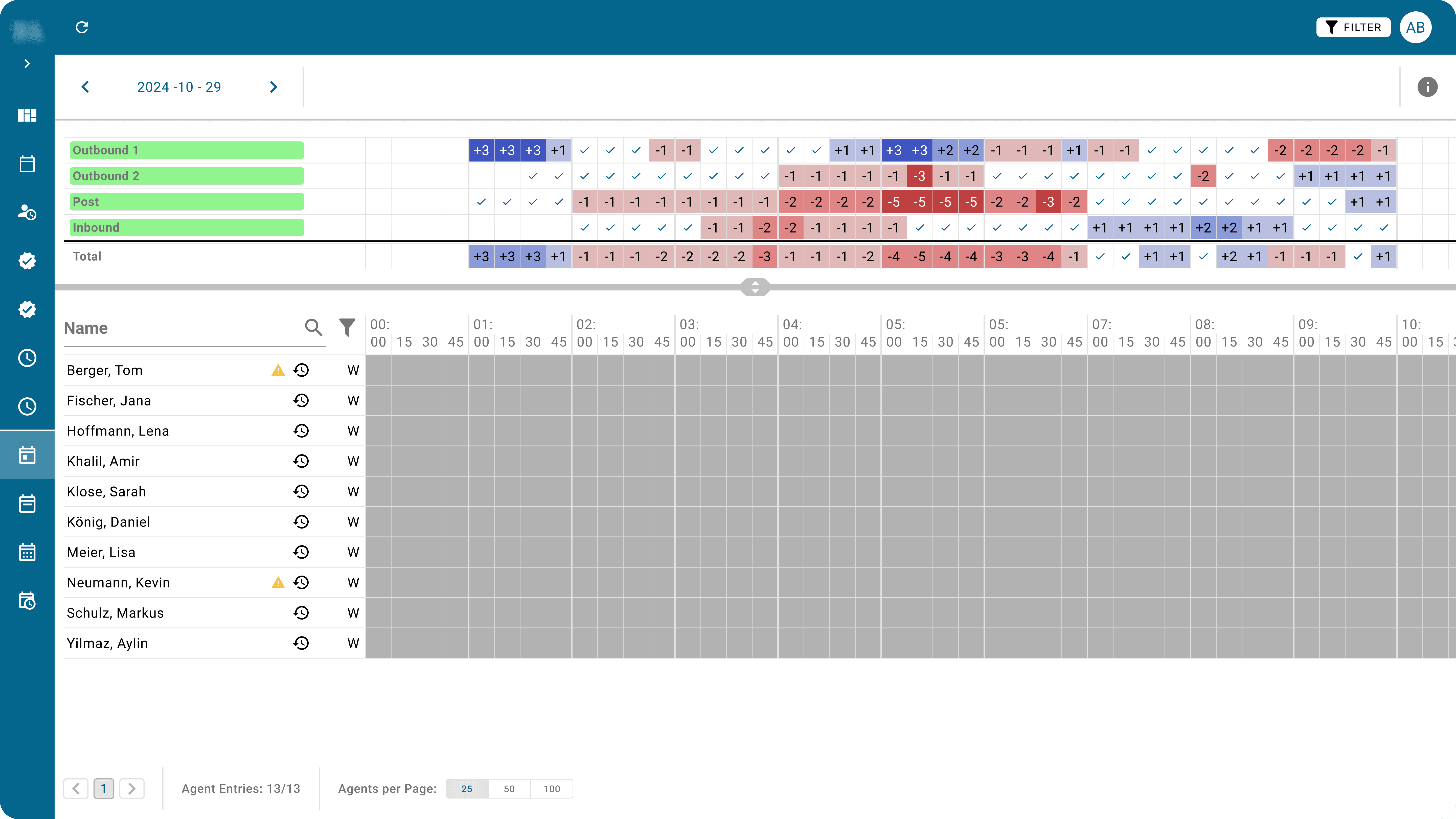
The colour system used to visualize shift demand created confusion and increased cognitive load, making it difficult for team leads to assess coverage accurately.
User Story:
As a team lead working with autonomous scheduling, I want to quickly understand whether a shift interval is over- or understaffed so I can intervene if necessary.
Solution:
The colour logic was redesigned to make staffing needs more intuitive and immediately recognisable at a glance.
Before
After
Before
1 Confusion in Color Coding
The initial used, percentage-based color system is inconsistent and often misleading—similar needs appear in different colors, and green doesn’t reliably signal balance. This created unnecessary cognitive load for users.
2 Optimization
1
Hide Balanced Shift Intervals
Balanced intervals are visually removed from the grid, allowing users to focus only on areas that require action.
2
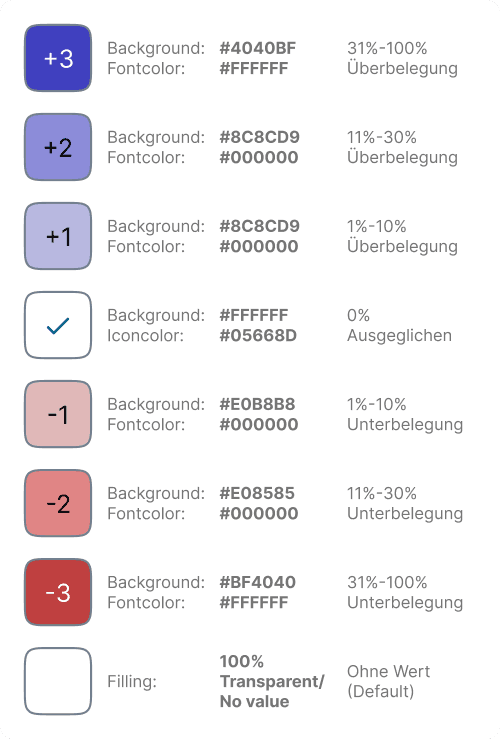
Bi-Color Concept
Understaffed intervals use red as an immediate signal of critical action. Overstaffed intervals use blue, indicating action is needed but without risking service quality.
3
Three-Level Demand Indicators
The system is simplified to three urgency levels, making demand states quicker to scan and reducing cognitive load.
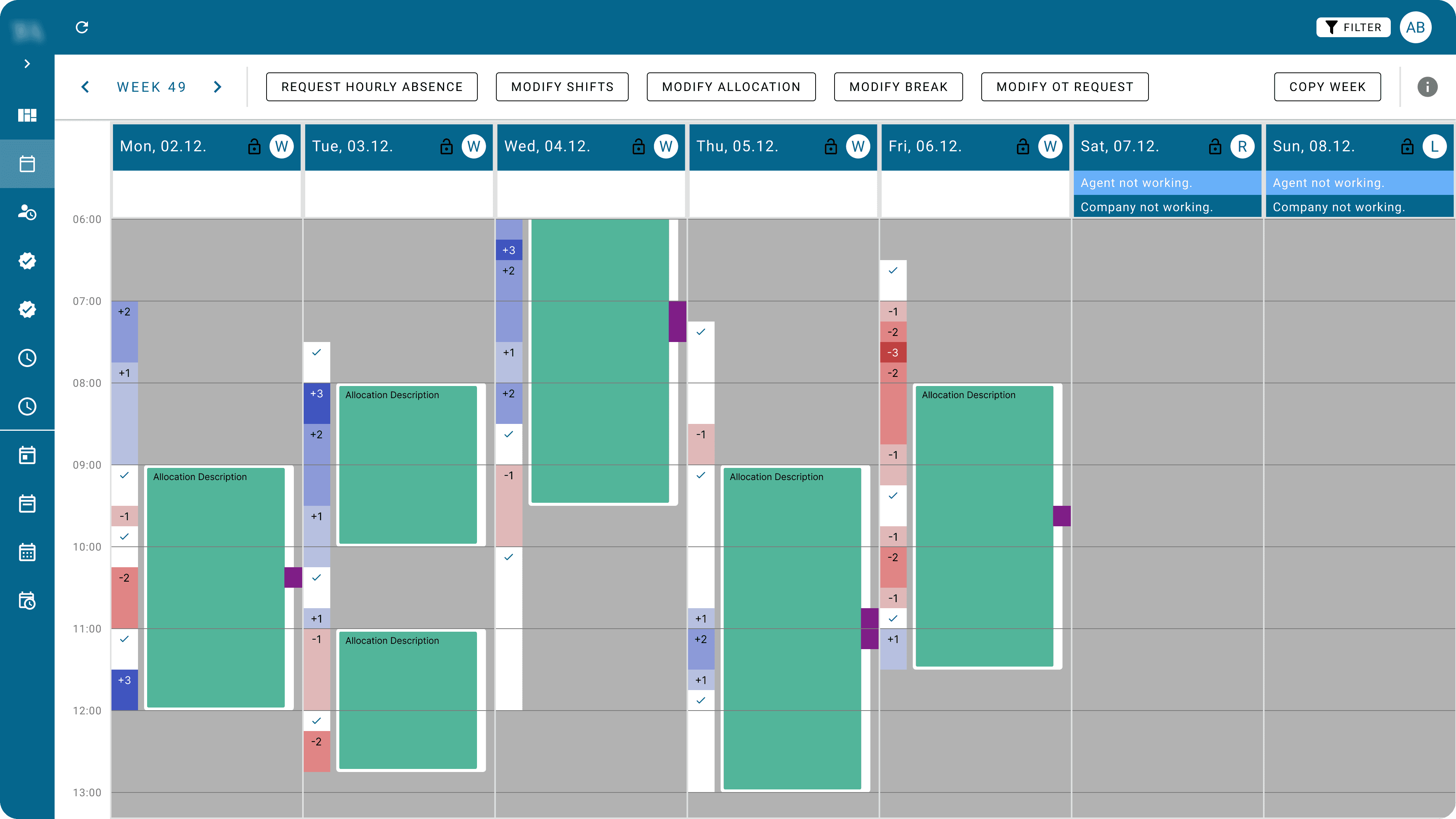
3 Transfering Color Code for Continuity within the System
To practice continuity this improvement must also find implementation in other views showing the team demands.
Before
After
Before
1 Confusion in Color Coding
The initial used, percentage-based color system is inconsistent and often misleading—similar needs appear in different colors, and green doesn’t reliably signal balance. This created unnecessary cognitive load for users.
2 Optimization
1
Hide Balanced Shift Intervals
Balanced intervals are visually removed from the grid, allowing users to focus only on areas that require action.
2
Bi-Color Concept
Understaffed intervals use red as an immediate signal of critical action. Overstaffed intervals use blue, indicating action is needed but without risking service quality.
3
Three-Level Demand Indicators
The system is simplified to three urgency levels, making demand states quicker to scan and reducing cognitive load.
3 Transfering Color Code for Continuity within the System
To practice continuity this improvement must also find implementation in other views showing the team demands.
Before
After
Before
1 Confusion in Color Coding
The initial used, percentage-based color system is inconsistent and often misleading—similar needs appear in different colors, and green doesn’t reliably signal balance. This created unnecessary cognitive load for users.
2 Optimization
1
Hide Balanced Shift Intervals
Balanced intervals are visually removed from the grid, allowing users to focus only on areas that require action.
2
Bi-Color Concept
Understaffed intervals use red as an immediate signal of critical action. Overstaffed intervals use blue, indicating action is needed but without risking service quality.
3
Three-Level Demand Indicators
The system is simplified to three urgency levels, making demand states quicker to scan and reducing cognitive load.
3 Transfering Color Code for Continuity within the System
To practice continuity this improvement must also find implementation in other views showing the team demands.
Before
After
Before
1 Confusion in Color Coding
The initial used, percentage-based color system is inconsistent and often misleading—similar needs appear in different colors, and green doesn’t reliably signal balance. This created unnecessary cognitive load for users.
2 Optimization
1
Hide Balanced Shift Intervals
Balanced intervals are visually removed from the grid, allowing users to focus only on areas that require action.
2
Bi-Color Concept
Understaffed intervals use red as an immediate signal of critical action. Overstaffed intervals use blue, indicating action is needed but without risking service quality.
3
Three-Level Demand Indicators
The system is simplified to three urgency levels, making demand states quicker to scan and reducing cognitive load.
3 Transfering Color Code for Continuity within the System
To practice continuity this improvement must also find implementation in other views showing the team demands.
Thank You
Thanks for spending a moment with this case study.
If you’d like to chat, I’d be happy to connect.
Making stuff is like wanting stuff. Just wilder.
Let's make something together!
© Sophie Lucke 2025